
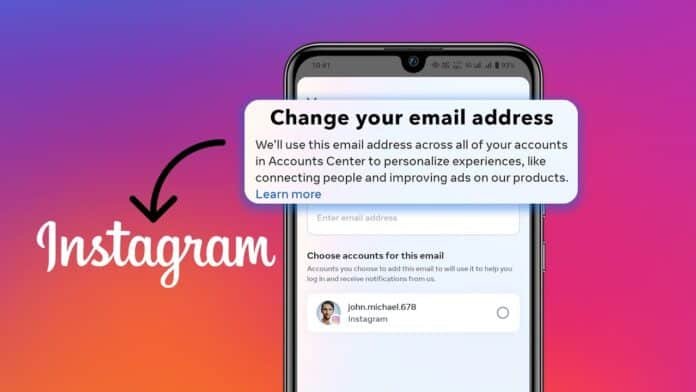
While accessing Instagram account login, it prompts you to enter your Email address. Alternatively, it sometimes sends the OTP to email. If you don’t have access to your email account anymore, you might struggle in using meta-acquired Instagram and Facebook.
Not to mention, the two accounts are in most cases linked to each other.
If you have lost access to an old email ID or wish to update it on Instagram. Here’s How to Change Email on Instagram using simple steps.
also read: Top 10 Instagram Features 2024: Enhance Your Instagram Experience Now
How to Change Email on Instagram Using an Android Device
If you own an Android device and use the Instagram app, you can update the email for all your linked accounts via Account Center. Use the below steps to do so.
- Launch Instagram and go to your profile tab.
- Tap the hamburger icon at the top right corner of the screen.
- In the settings menu, go to the Accounts Center.
- You will now find an option for personal details and then contact details.
- Tap Add a new contact to find a prompt to add a new phone number or email address. Select the latter.
- You can now enter the new email address and select the accounts for which you wish to make this update.
- You will also find a tick box stating you can replace the existing email address with the new one for your selected account.
- Tap done to get a confirmation code on your updated email address.
- Verify it and tap Done.
How to Change Your Email Address on Instagram via the Official Website
Alternatively, you can also go to the Instagram official website, log in through your device, and access the accounts center to update the email address on your profile. You can use the below steps to do so.
- Go to the official website of Instagram on either of the web browsers and log in to your Instagram account for which you wish to update your Email address.
- Click the More button from the bottom left corner of your screen to access Settings.
- Tap Account Center and navigate to personal details. Select contact info from the menu.
- You will now find an option to Add a new contact. Click it.
- Enter the new email ID you wish to update and select the accounts for whom you wish to make the change.
- Like the Android app, you will find a check box. You can tap it if you want to update your existing email address.
- Click next to get confirmation on your new ID.
- Verify the code and tap Next to finish the update.
The key to updating contact details on your meta-accounts is to access the Account Center. As an alternative, you can also do this via Facebook.
Launch Facebook, and go to its settings to find the Account Center. You can then use a similar set of steps to update account details via that platform.
It takes a couple of minutes to make an update to your details on Instagram.
Using the above steps, it is also possible to update your existing mobile number on a meta-account.
Wind Up
You need an email address to create an Instagram account. And every time you log in to your Instagram profile somewhere, it asks for a confirmation code from either your mobile number or email address.
Thus, you can’t keep your accounts linked to an inactive email address, as there is a possibility of losing it completely if you are signed out of it from all your devices.
Using the above steps, now, you know How to Change your Email on Instagram using really easy steps.