WhatsApp is one of the most popular messaging apps in India, with millions of users relying on it for daily communication. However, this popularity also attracts spammers who send unsolicited and often malicious messages.
These spam messages can be annoying, disruptive, and sometimes even dangerous if they contain phishing links or scams.
In this comprehensive guide, we will explain how to block, report, and delete unwanted WhatsApp Text messages to help you keep your messaging experience safe and enjoyable.
also read: How to Create Your WhatsApp Business Account: A Complete Guide in 2024
How to Block and Report Spam on WhatsApp
Blocking and reporting spammers is the first and most crucial step in protecting yourself from unwanted messages. Here’s a detailed guide on how to do this on Android, iPhone, and desktop devices.
For Android Users
- Open the WhatsApp App: Launch the WhatsApp app on your Android device.
- Select the Conversation: Navigate to the conversation you want to block.
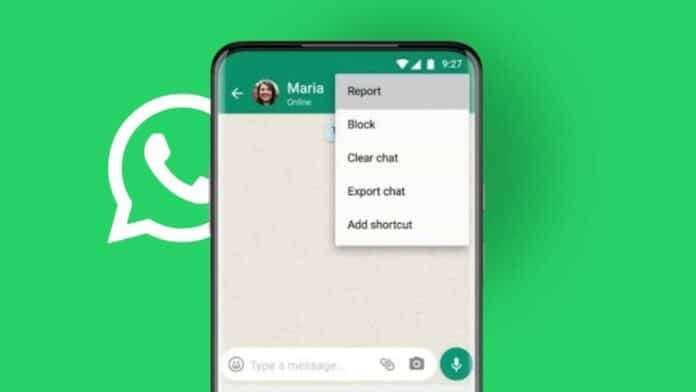
- Open the Menu: Tap the three-dot menu icon in the upper-right corner of the screen.
- Access More Options: From the dropdown, select “More”.
- Block the Contact: Tap “Block”. You will see an option to report the contact as spam. If you want to report the contact, check the “Report contact” box before confirming the block.
- Confirm Block and Report: This action will block the contact and forward the last five messages to WhatsApp for review.
By following these steps, you prevent the blocked contact from sending you any more messages on WhatsApp. Reporting the contact also helps WhatsApp identify and take action against spammers.
For iPhone Users
- Launch WhatsApp: Open WhatsApp on your iPhone.
- Open the Conversation: Select the conversation with the contact you wish to block.
- Access Contact Info: Tap the contact name at the top of the screen to open their contact info.
- Scroll Down: Scroll down and select “Block Contact”.
- Report and Block: To report the contact as spam, tap “Report Contact” and then “Report and Block” to confirm.
Blocking and reporting a contact on an iPhone follows a similar process to Android, ensuring that the unwanted messages stop and WhatsApp is notified of potential spam activity.
For Desktop Users
- Open WhatsApp Desktop: Launch the WhatsApp application on your Windows or macOS computer.
- Select the Conversation: Open the conversation with the spammer.
- Open Contact Info: Click the contact name at the top of the chat to access their information.
- Report and Block: Select “Report Contact”, then click “Report and Block” to confirm your action.
For WhatsApp Web users
- Visit WhatsApp Web: Open WhatsApp Web on your preferred browser.
- Select the Conversation: Click on the conversation with the spam contact.
- Open Contact Info: Click the contact name to open the info menu on the right.
- Report and Block: Scroll down and select “Report”. Then confirm by clicking “Report and Block”.
These steps ensure that even when using WhatsApp on a desktop or web, you can effectively manage and report spam contacts.
How to Delete Spam Messages and Media on WhatsApp
After blocking and reporting a spammer, it’s important to clean up your chats by deleting spam messages and any media they might have sent. Here’s how to do it on different devices.
For Android Users
- Open WhatsApp: Launch WhatsApp on your Android device.
- Select the Conversation: Go to your Chats screen and long press the conversation you wish to delete.
- Delete the Chat: Tap the trash can icon at the top of the screen.
- Delete Media: Check the box beside “Also delete media received in this chat from the device gallery” and tap “Delete chat”.
If you only want to remove spam images
- Access Settings: Tap the three-dot menu in the upper-right corner and select “Settings”.
- Manage Storage: Open “Storage and data” and then “Manage storage”.
- Delete Media: Check your WhatsApp chats and storage space, open a WhatsApp chat, and tap the checkmark beside “Select all”. Then tap “Delete”.
For iPhone Users
- Open WhatsApp: Open WhatsApp on your iPhone.
- Delete Chat: Swipe left on the conversation you want to delete and select “More”.
- Confirm Deletion: Tap “Delete Chat” and then confirm by selecting “Delete Chat” again.
To delete individual media files
- Open Settings: Go to Settings in WhatsApp.
- Manage Storage: Select “Storage and data”, then “Manage Storage”.
- Delete Media: Check the detailed WhatsApp storage breakdown, open any chat, select all media files, and tap the delete button.
For Desktop Users
- Open WhatsApp Desktop: Launch WhatsApp on your computer.
- Delete Chat: Right-click the conversation with the spammer and select “Delete chat”.
- Confirm Deletion: Click “Delete chat” to erase the conversation from all your devices.
By deleting spam messages and media, you ensure that your device stays uncluttered and secure.
How to Prevent Future Spam on WhatsApp
While blocking and deleting spam is effective, taking preventive measures can help reduce the chances of receiving spam in the first place. Here are some tips:
Adjust Privacy Settings
- Open WhatsApp Settings: Go to “Settings” in WhatsApp.
- Select Account: Tap on “Account” and then “Privacy”.
- Manage Privacy: Adjust settings to control who can see your profile photo, status, last seen, and other personal information. Limiting this to “My Contacts” can reduce spam from unknown users.
Restrict Group Additions
- Group Privacy Settings: In the Privacy settings, find “Groups”.
- Limit Additions: Set “Groups” to “My Contacts” or “My Contacts Except” to control who can add you to groups.
Be Cautious with Your Number
- Share Wisely: Only share your WhatsApp number with trusted contacts.
- Avoid Public Posting: Don’t post your number publicly on social media or websites where spammers can easily find it.
Wind Up
Dealing with spam on WhatsApp can be frustrating, but with the right steps, you can block, report, and delete unwanted WhatsApp Text messages to maintain a safe and enjoyable chat environment.
By following the instructions in this guide, you can effectively manage spam on Android, iPhone, and desktop devices. Additionally, adopting preventive measures will help you minimize the chances of receiving spam in the future.
Stay vigilant, use the provided tools, and keep your WhatsApp experience secure and spam-free.